
Attendance mode — for HR admins
Fateh HR lets your HR team pick how attendance is captured: the big Check In / Check Out button, or starting and stopping a task timer. Payroll runs off whichever one you choose.
This page is written for HR / admins. Employees don't see the toggle — they just see the flow you've selected.
Where to set it
From the Frappe Desk:
- Go to Fateh HR Settings (search bar → type
Fateh HR Settings). - Pick Attendance Mode:
- Checkin Based — default
- Timer Based
- Save. The next time an employee opens the app it picks up the new mode.
Offline awareness
Mobile apps cache the mode in their local storage. An employee who is offline when you flip the setting will keep using the old mode until their app syncs. Plan rollouts accordingly.
Mode 1 — Checkin Based (default)
When to pick this
You treat attendance as "did the employee show up?". Task time tracking is a separate, optional thing for billable-hours / project costing.
| Action | What happens |
|---|---|
| Employee taps Check In | GPS + optional selfie captured. Creates Employee Checkin (IN). |
| Employee taps Check Out | GPS captured. Creates Employee Checkin (OUT). |
| Employee taps Start Timer on a task | Creates a Timesheet row ONLY. Does not create a Checkin row. |
| Employee taps Stop Timer | Closes the Timesheet row with to_time + hours. No Checkin row. |
Payroll flow: Employee Checkin rows feed HRMS Auto Attendance → Attendance status → Salary Slip payment_days. Timesheets are for reporting / billable hours only.
Mode 2 — Timer Based
When to pick this
You want every attendance event tied to a specific task. The employee can't check in without declaring what they're going to work on.
| Action | What happens |
|---|---|
| Employee taps Check In | App asks "pick a task" first. On confirm, GPS is captured, the server creates Employee Checkin (IN) + opens a Timesheet row for that task. |
| Employee taps Check Out | The running timer is automatically stopped. Server creates Employee Checkin (OUT) + closes the Timesheet row with hours. |
| Employee taps Start Timer on a task (Tasks tab) | Same effect as Check In + picking that task. |
| Employee taps Stop Timer (Tasks tab) | Same effect as Check Out. |
The Check-In button and the Tasks tab share one live timer. Starting from either place shows the running state in both. Switching task mid-day is supported: the employee stops the current task (writes OUT + closes row) and starts another (writes new IN + opens new row) — creating two attendance pairs for the day.
Prerequisite: Every employee needs at least one open Task assigned to them (status = Open / Working, _assign contains their user). If they have no open tasks the Check-In screen shows "No tasks assigned" instead of letting them tap through.
Why a toggle, and not both at once?
Earlier versions of Fateh HR ran BOTH flows: the big button wrote a Checkin, AND the timer also wrote one. If an employee used the button AND started a task timer, attendance was double-counted, Auto Attendance produced odd hours, and payment_days on the salary slip was off.
One mode = one source of truth for attendance. Pick the one that matches your operations.
Daily hours card on the home screen
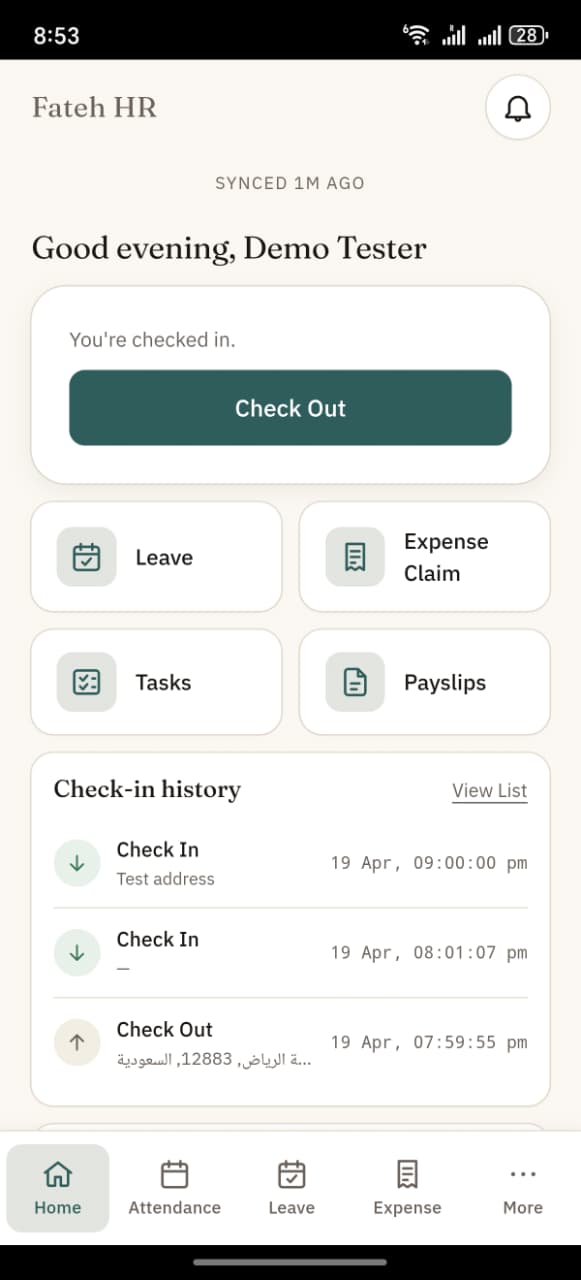
Regardless of mode, the app home screen shows a "Worked today" card with the sum of completed IN → OUT pairs for the current site-local day. When an IN is open (no matching OUT yet) the card ticks live with a small green pulse — employees can see the running number tick up second-by-second.
Switching modes mid-month
Perfectly safe. The mode only affects new rows written after the switch. Historical Employee Checkin rows and Timesheets stay as-is. Auto Attendance keeps processing whichever rows exist.
If you flip from Timer Based → Checkin Based mid-day while an employee has a timer running, the next time they open the app they'll see their running timer on the Tasks tab and can stop it normally.
See also
- Check-in & Check-out — the big button flow
- Tasks — the timer flow