
Apply for leave
Request leave, see your balance, and review past applications.
Open the Leave hub
Tap the Leave tab at the bottom of the screen.
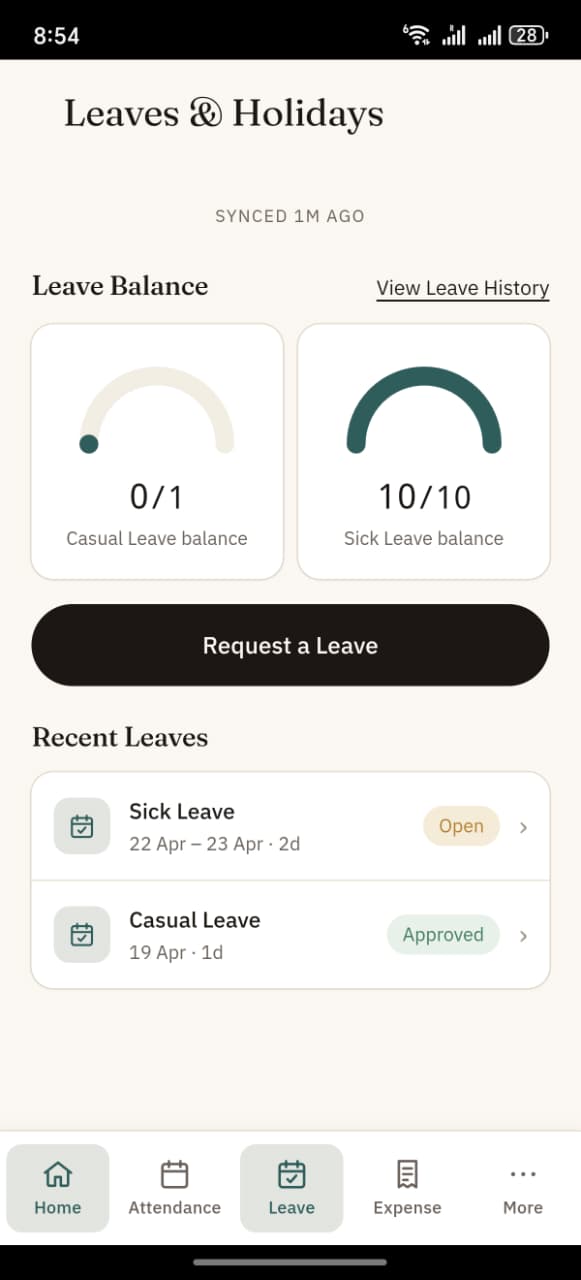
The Leave hub shows, from top to bottom:
- Leave Balance — gauge cards per leave type (Annual, Sick, Casual, …) with remaining vs total
- "Request a Leave" — big button to open the application form
- Recent Leaves — your 5 most recent applications
- Pending Sync — any requests submitted offline that haven't synced yet
Request a leave
- Tap "Request a Leave".
- Leave Type — pick from the dropdown. Each type shows its remaining balance next to the name.
- Date range — pick From and To dates. Same day in both for a single-day leave.
- Half day — tick if this is a half-day leave.
- Reason — a brief note (optional but usually helpful for HR).
- The Balance card shows how many days you have left for the selected type.
- Tap Submit.
You'll see either:
- "Submitted." — when online, directly accepted by the server
- "Queued — will submit when online." — when offline, saved locally for sync
If the server rejects
If you apply for more days than your remaining balance, or the dates conflict with another approved leave, the server rejects the request and shows the exact reason — for example:
Leave balance exhausted for 2026
This happens only when online. Offline submissions are trusted at submit time and the validation runs when they reach the server on sync. If a queued leave fails server validation on sync, it shows up in More → Sync Errors with the reason.
Viewing your leave history
Tap "View Leave History" at the top of the hub, or "View List" below Recent Leaves.
The list shows every leave application with:
- Leave type (e.g. Annual Leave)
- Date range (e.g.
15 Jan – 17 Jan · 3d) - Status badge — Open / Approved / Rejected / Cancelled
Seeing one leave in detail
Tap any row in Recent Leaves or the full list. A bottom sheet slides up with:
- Leave type
- Period (exact dates)
- Days (including half-day note if applicable)
- Status
- Your reason
Cancelling a leave
If the leave is still Open (not yet approved or rejected), the sheet shows a red Cancel button. Tap it, confirm, and the request is cancelled.
Once a leave is Approved, Rejected, or Cancelled, you can't change it from the app — ask HR.
Balance gauges
Each gauge is a half-arc:
- The filled portion shows how much balance you have left
- The number below is
balance / total(e.g.15 / 21 days balance) - Only leave types with an allocation show up — empty types are hidden
If you see "No leave allocation yet. Contact HR.", your employee record doesn't have any leave types allocated. HR needs to create a Leave Allocation on the Desk.