
Getting started
Welcome to Fateh HR. This guide gets you from "just installed the app" to "checked in and ready to work" in under three minutes.
What Fateh HR does
Fateh HR is the mobile app for your HR life. You use it to:
- Check in / check out of your workday with location + optional selfie
- Apply for leave and see your balance
- File expense claims with receipt photos
- View and download payslips
- See your attendance calendar for any month
It works on any Android phone, and also runs as a web app in your browser. Most importantly — it works offline. If you're in a warehouse with no signal or out on a delivery route, just use the app as normal. Your check-ins and requests queue up locally and sync the moment you're back online.
Before your first login
You'll need:
- Your work email (the one your HR team registered for you)
- Your password (sent to you by HR — reset from the Desk if you've forgotten it)
- The Fateh HR app installed — see Install the app
TIP
If you don't know your email or password yet, ask your HR team. They can create or reset your account from the Frappe HR desk.
Your first 3 minutes
Once the app is installed, here's the quickest path to a working setup:
- Open Fateh HR
- Log in with your work email and password → details
- Set a PIN (4–6 digits) — this is what you'll use every day instead of the full password → details
- Enable biometric unlock when asked — skip typing the PIN by using your fingerprint / face → details
- You're on the home screen. Tap "Check In" to start your day.
From now on, you only need to enter your password again if you log out. Day to day it's PIN or fingerprint.
What each tab does
| Tab | What's there |
|---|---|
| Home | Current status (IN / OUT), the check-in button, your last 3 check-ins, latest announcement |
| Attendance | Monthly calendar view — tap any day to see IN / OUT pairs and total hours |
| Leave | Your leave balances, request form, recent applications, and history |
| Expense | Totals (Claimed, Pending, Approved, Paid), new claim button, recent claims |
| More | Profile, payslips, announcements, notifications, sync errors, language, logout |
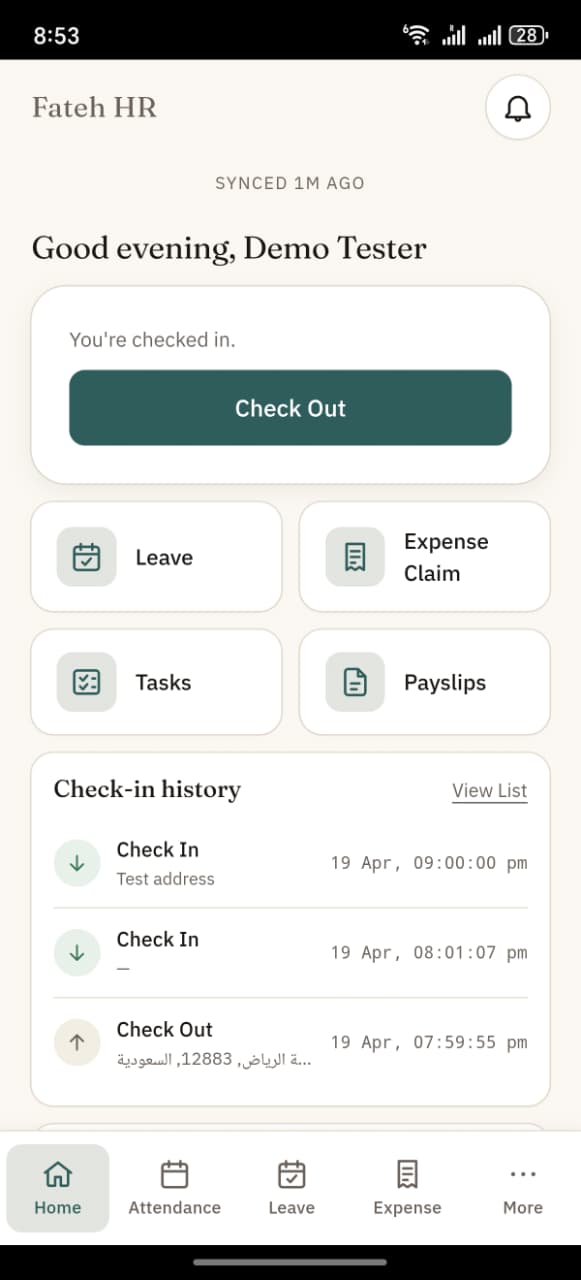
Worked today card
Just below the Check-in card, a "Worked today" chip shows how many hours you've clocked today (e.g. 8h 12m). It's the sum of all your completed IN → OUT pairs for the day. While you're still checked IN it ticks live — a small green pulse marks the running state, and the number increments every second.
When the sync bar turns orange
At the top of most screens you'll see a thin status bar:
- Synced now (grey) — everything saved to the server
- 5 changes pending · tap to sync (amber) — you have offline items waiting
- Syncing… (blue) — actively uploading
- Offline — working locally (grey) — no network, but everything you do still saves locally
- 2 sync errors (red) — something failed; tap to see why
If you see the red state, open it and tap Retry. It's almost always a temporary network hiccup.
Next steps
- Install the app if you haven't yet
- Set up biometric unlock for one-tap unlock
- Learn the offline behaviour — the single most useful thing to know
- Check in for the first time