Profile
See your employee profile details.
Open it
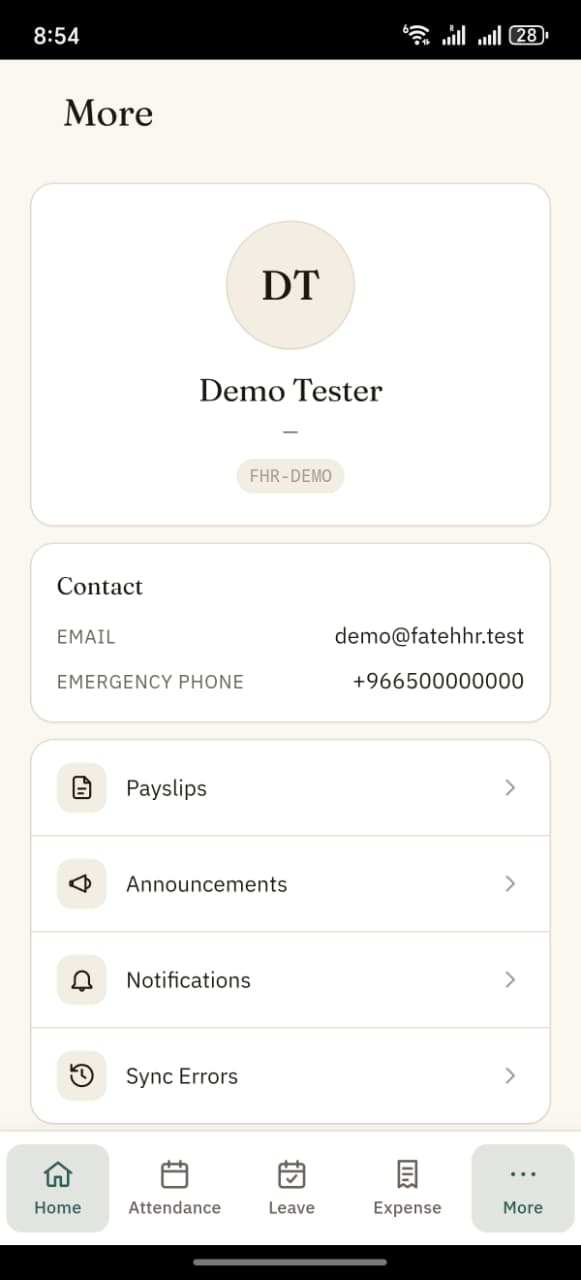
Tap the More tab at the bottom → your profile card is the first thing on the screen.
What's shown
- Avatar — your photo from the Employee record (falls back to your initials)
- Name
- Designation · Department (e.g. "Sales Executive · Operations")
- Employee ID (small grey pill below the name)
Contact
- Email — your work email
- Emergency phone
- Emergency contact — name of the person
- Relation — their relation to you
Bank details (if HR has provided them)
- Bank — bank name
- Account # — masked (only last 4 digits shown)
- IBAN — masked (only last 4 digits shown)
Read-only
Profile details are read-only from the mobile app. This is deliberate — editing them should go through HR so the employee record stays clean and auditable. If anything's wrong, message your HR team and they'll update the Employee record on the Desk. The app will reflect the change next time it syncs.
"Editing your bank details? Contact HR."
This hint at the bottom of the Bank section confirms the above — bank changes are sensitive and go through HR.
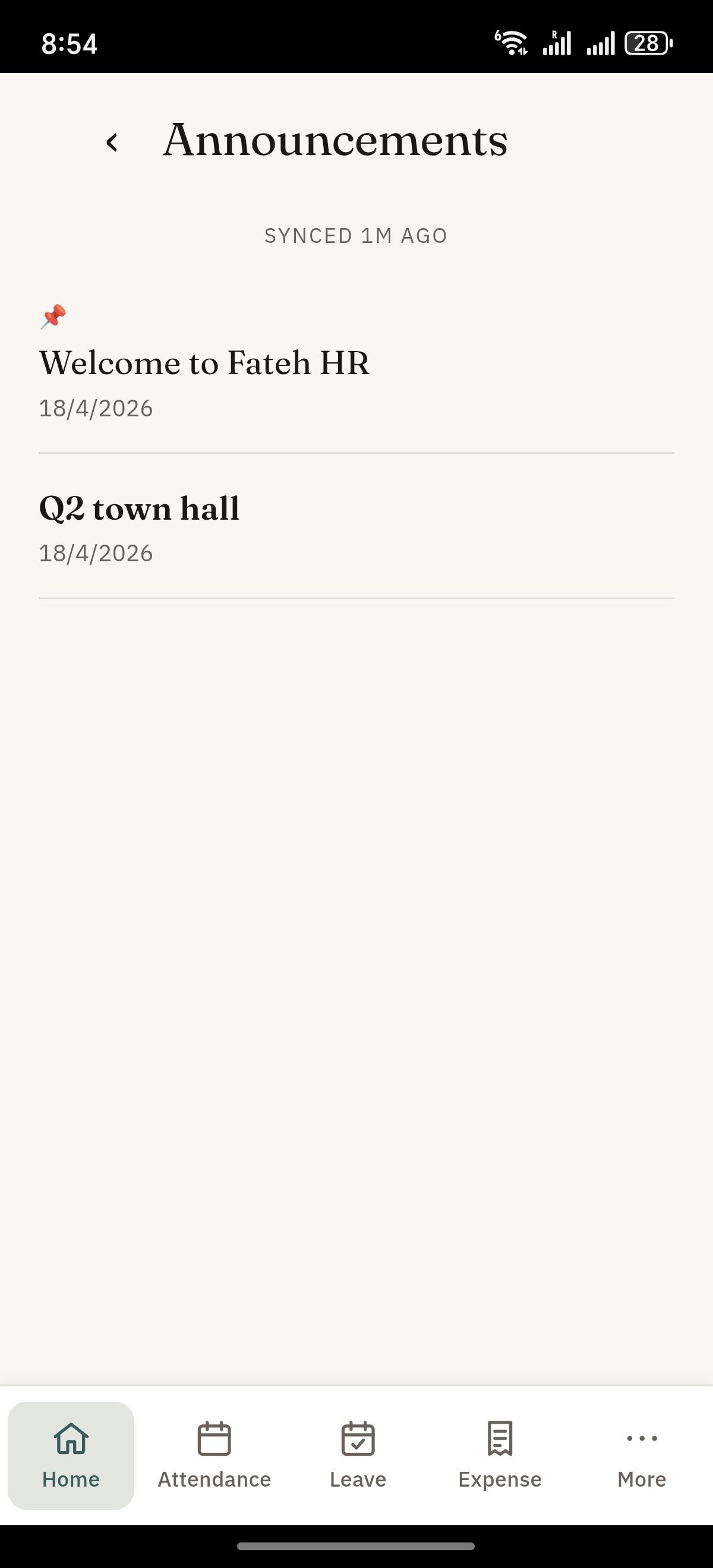
Announcements & Notifications
The More tab also links to two read-only streams: