
Tasks
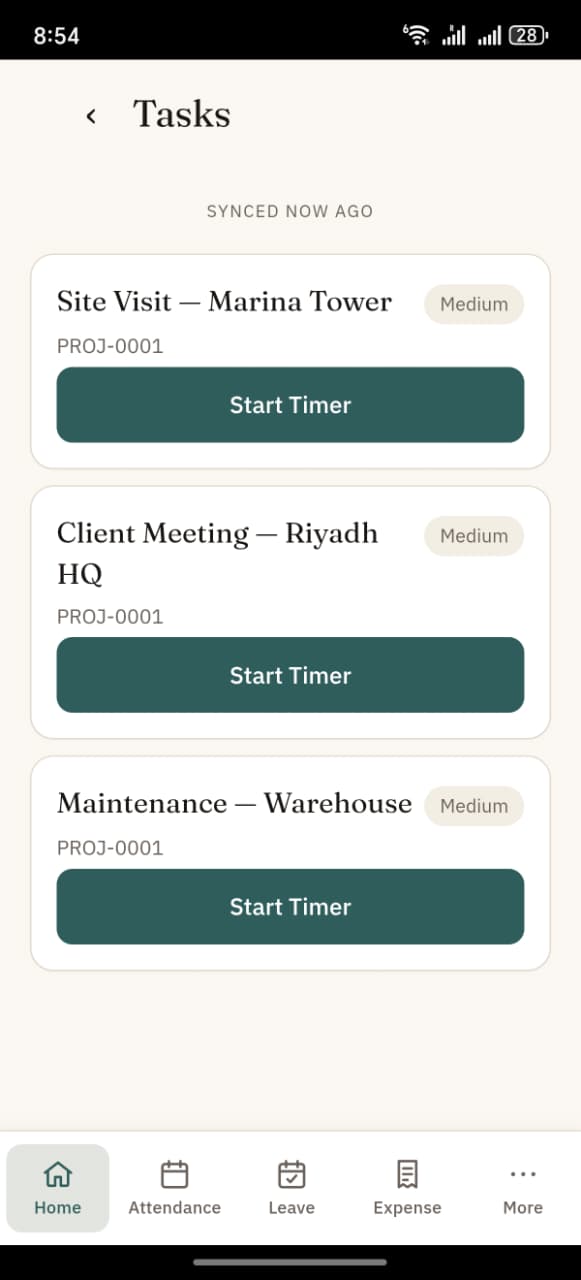
See tasks assigned to you and track time on each.
Ties to attendance
If your HR team has set Attendance Mode to Timer Based, starting a task timer here is the same as using the big Check In button with that task selected — server writes both the Timesheet row AND an Employee Checkin (IN). If the mode is Checkin Based (the default), starting a timer here writes only the Timesheet row. See Attendance mode.
Open Tasks
From the Home screen → Tasks quick action.
The list
Your assigned tasks appear with:
- Task name
- Short description
- Due date (if set)
- Start Timer button
Starting a timer
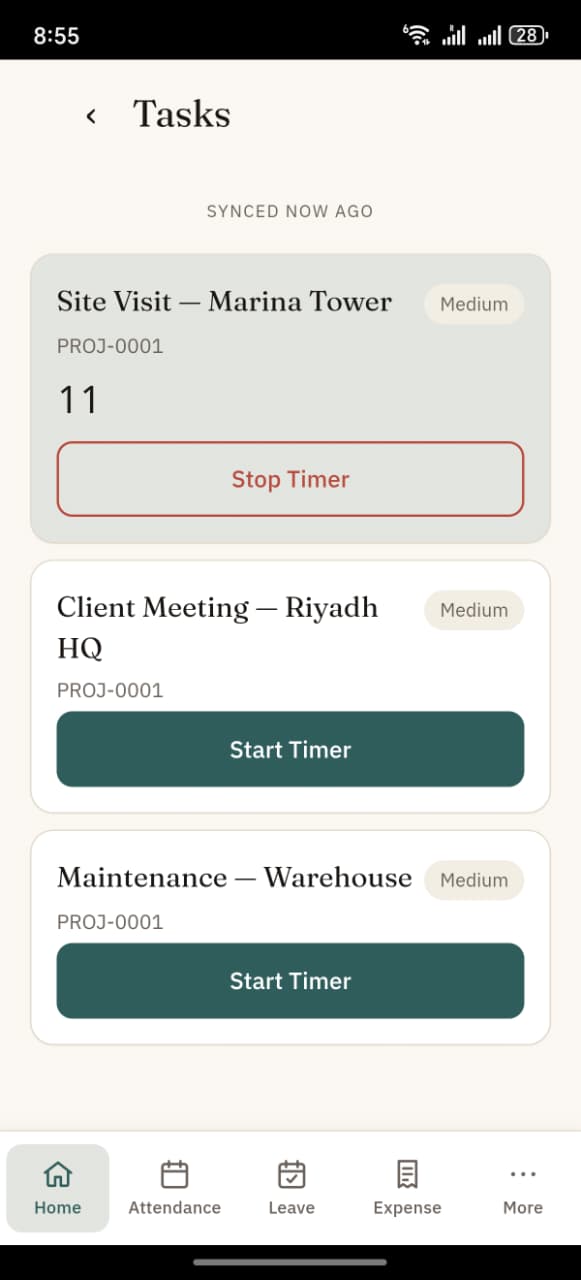
Tap Start Timer on a task. The timer begins counting and your IN check-in will be tagged to this task.
The stop button replaces Start while the timer is running — tap Stop Timer to end.
Geofence on tasks
If your HR team has set a location + radius on the task, your check-ins are checked against it:
- Inside the radius → geofence status
inside - Outside the radius →
outside(recorded but flagged for manager review)
See the Check-in page for what this looks like on the Check-in screen.
"No tasks assigned."
If you see this message, your manager hasn't assigned any tasks to you yet. This is normal in some roles — you can still check in without a task.